
After using a laptop or desktop computer for a while, many people feel that their PC has become noticeably slower than before. While searching for a fix, many end up installing fake 'PC Cleaner' or 'RAM Booster' software from the internet—which, instead of speeding up the PC, adds ads, background processes, and malware that make the system even heavier. Yet without any third-party software, you can significantly boost your PC's speed just by adjusting a few built-in settings in Windows 10 and 11.
5 Safe Settings to Speed Up a Windows PC
Try making the following 5 simple changes on your computer today:
- 1. Disable Startup Apps: Many unnecessary apps (such as game launchers, cloud sync tools, and chat apps) start running in the background as soon as the PC turns on. Press Ctrl+Shift+Esc to open Task Manager, go to the Startup tab, and Disable the ones you do not need right away.
- 2. Enable Storage Sense: Go to Settings > System > Storage and turn on Storage Sense. It will automatically clean up accumulated temporary files and old Recycle Bin items to keep your C: drive free.
- 3. Reduce Unnecessary Visual Effects: On older or low-RAM PCs, search for 'Adjust the appearance and performance of Windows' in the Start menu and select 'Adjust for best performance' (or simply turn off unnecessary animations).
- 4. Update Windows and Graphics Drivers: Keeping Windows Update active regularly fixes system bugs and security flaws, while official drivers from the laptop manufacturer keep the PC stable.
- 5. Scan with Windows Security: Malware coming from unknown software or USB drives slows down a PC; therefore, run a Quick or Full scan with the built-in Windows Security from time to time.
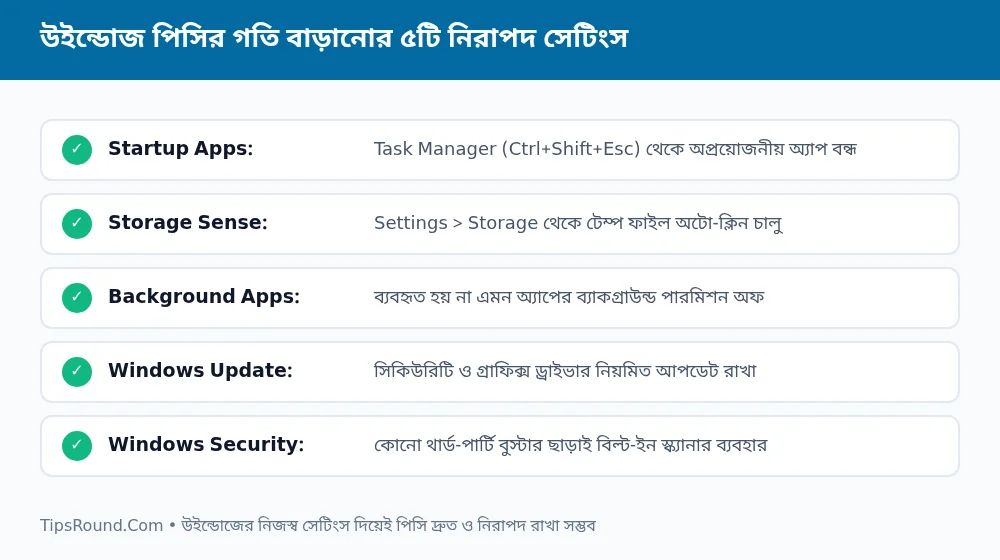 Task Manager and Storage Sense settings to boost Windows 10 and 11 speed
The Reality of Hardware Upgrades
If your PC still has an old mechanical hard drive (HDD) or 4 GB of RAM, you should look at hardware alongside software settings. For modern Windows 10/11 and browsers, having at least an SSD and 8 GB of RAM multiplies performance.
Controlling Browser Tabs and Extensions
Keeping 20–30 tabs open at once in Google Chrome or Edge consumes a huge amount of RAM. Turn on the 'Memory Saver' option under the browser's Settings > Performance and uninstall unnecessary extensions.
Controlling Laptop Battery and Temperature
When a PC overheats (Thermal Throttling), the processor automatically reduces its speed. Keep the following in mind:
- Keep Airflow Paths Clear: Never use a laptop on a bed or pillow; placing it on a hard, flat table allows air to escape through the bottom fan.
- Clean Fans and Vents: Getting the cooling fan dusted during servicing at least once a year reduces both temperature and noise.
- Battery Power Mode: Use 'Best Performance' for heavy tasks while plugged in, and 'Balanced' mode when running on battery.
Frequently Asked Questions (FAQ)
Do third-party RAM Cleaner apps actually work?
No, modern Windows optimizes RAM on its own; separate RAM cleaners actually clear useful system cache and slow down the PC.
How much free space should be kept on the C: drive?
To prevent the system from stalling, it is good to always keep at least 15–20 percent or a minimum of 20 GB free on the C: drive.
Should a PC always be put to Sleep instead of Shut Down?
Performing a full Shut Down or Restart at least 2–3 times a week clears out accumulated background memory.
Conclusion: Through Windows' own clean settings and regular maintenance, your PC will stay fast and secure for a long time.

Discussion & Comments (0)
No comments on this post yet. Be the first to comment!