
Many of us complain that a laptop or desktop computer that is only two or three years old has suddenly become sluggish—Windows takes two minutes to boot, and opening a browser or Photoshop makes it hang. Most people assume the processor has gotten old, but in reality, 90% of the time the real culprit is a slow mechanical hard disk (HDD). Adding an SSD (Solid State Drive) at a modest cost can make that same old computer run as fast as new.
Why Is an SSD Many Times Faster Than an HDD?
HDDs and SSDs work in completely different ways, which directly impacts computer speed:
- Mechanical Disk vs. Flash Chips: An HDD uses spinning magnetic platters and a read-write head, so finding data takes time. In contrast, an SSD transfers data instantaneously on electronic flash chips.
- Boot and App Loading Time: While Windows takes 60–90 seconds to boot on an HDD, a standard SSD gets your desktop ready in just 10–15 seconds.
- SATA vs. M.2 NVMe: Older laptops support 2.5-inch SATA SSDs (speeds ~550 MB/s), while modern PCs support M.2 NVMe SSDs (speeds 2,000–3,500+ MB/s).
- Heat, Noise, and Battery Savings: With no moving parts inside, an SSD is silent, runs cooler, is less prone to shock damage, and slightly improves laptop battery backup.
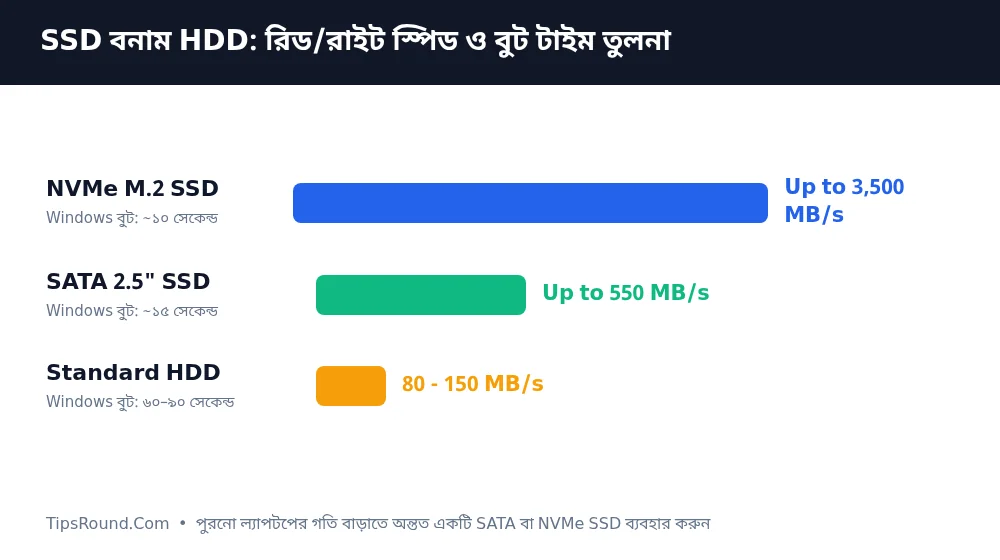 Read/write speed and boot time differences between NVMe SSD, SATA SSD, and standard HDD
Smart Upgrade Plan According to Your Budget
Buying a high-capacity SSD can sometimes feel expensive. In that case, the most cost-effective and practical strategy is:
- Dual Storage Setup: Use a 256 GB or 512 GB SSD for the operating system (Windows) and essential software, and keep your old 500 GB or 1 TB HDD for movies, photos, and large backup files.
- Caddy in Place of Laptop DVD Drive: If your older laptop lacks an M.2 slot, install the SSD in the main slot and remove the DVD drive to use your old HDD via a Caddy.
- RAM Balance: Alongside an SSD, having at least 8 GB of RAM ensures super-smooth multitasking.
What to Check Before Buying
Before buying an SSD from a store, search your exact laptop or motherboard model number to check whether it supports an M.2 NVMe slot or only a 2.5-inch SATA slot. Always buy from a well-known, reliable brand with an official warranty (typically 3 to 5 years).
Practical Tips for Installation and Maintenance
After installing an SSD, following a few simple rules helps maintain its longevity and peak speed:
- Do Not Defragment: Never manually Defragment an SSD like an old HDD; it reduces flash cell lifespan. Windows automatically runs TRIM as needed.
- Keep 15–20% Free Space: Filling an SSD completely can slightly slow it down, so try to keep at least 20% free space.
- Proper Power Supply: For desktop PCs, using a quality power supply and UPS reduces the risk of drive data corruption during sudden power outages.
Frequently Asked Questions (FAQ)
NVMe SSD or SATA SSD—which is better for everyday tasks?
For daily browsing, office work, or general use, the difference feels minor, though NVMe SSDs are far ahead for file transfers, video editing, and newer motherboards.
Will old files be deleted when switching from HDD to SSD?
If you install Windows fresh on the new SSD, files on other partitions of your old HDD can remain intact, though keeping a backup for safety is always wise.
Is a 128 GB SSD enough today?
With Windows 10 or 11 and regular updates, 128 GB fills up quickly; choosing at least 256 GB or 512 GB is the smartest option.
Conclusion: Before replacing an old computer, try upgrading to an SSD—you will get remarkable speed back at a low cost.

Discussion & Comments (0)
No comments on this post yet. Be the first to comment!