
Have you ever lost the paper slip for your grocery list or struggled to remember important class notes? Almost everyone runs into this problem. Having a good note-taking app on your phone makes it much easier to stay organized. Google Keep is a free note-taking app that is simple, fast, and works seamlessly across all your devices. In this review, I will explain what Google Keep is, its benefits and limitations, and how to use it for studying and office work. By the end, you will know whether this app is the right fit for you.
What Is Google Keep?
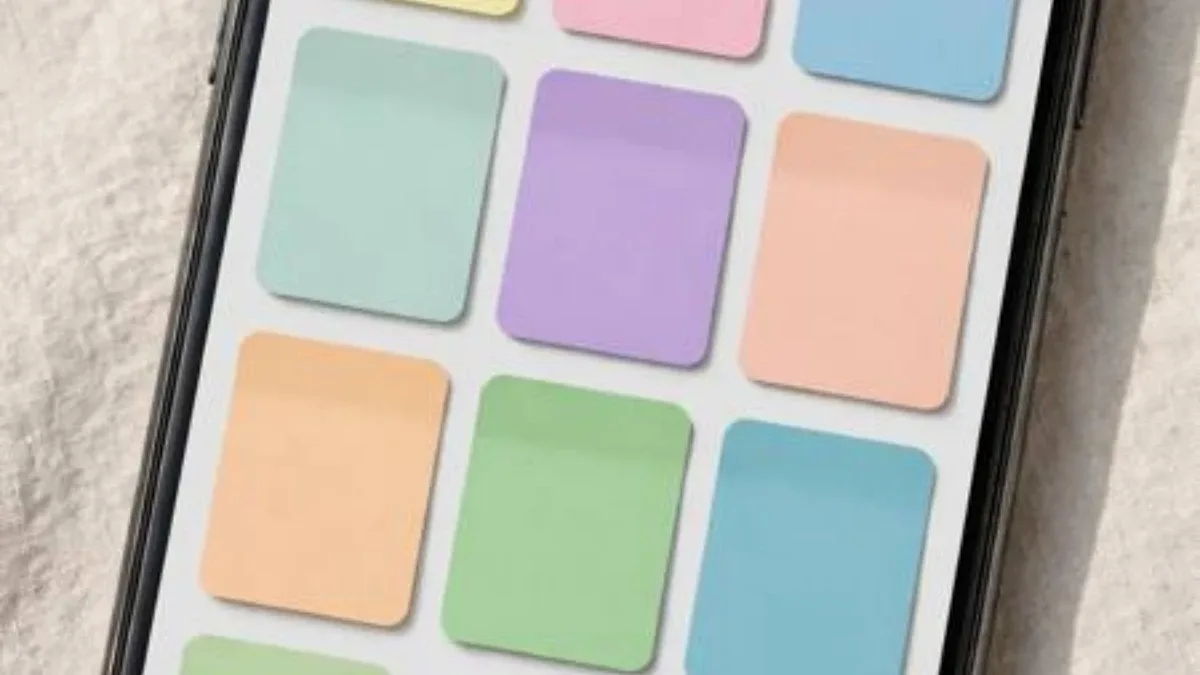
Google Keep is a note-taking app developed by Google. It is available on Android, iPhone, and computer web browsers. When you sign in with your Google account, your notes stay updated across all your devices automatically. Launched in 2013, its main strength is its simple design. You can open the app and start writing immediately without dealing with complicated settings. It lets you create color-coded notes, checklists, and add images. If you already use other Google services like Gmail or Google Docs, Keep fits right into your workflow—you can even send Keep notes directly to Google Docs.
Key Benefits of Google Keep
The biggest advantage of Google Keep is speed. The app opens instantly, and jotting down a note takes seconds. Whenever an idea pops into your head, you can capture it right away. The second major benefit is syncing. Notes written on your phone appear on your computer, and notes typed on your computer show up on your phone. You can even take notes offline, and they will sync automatically once you reconnect to the internet. Third, Google Keep is completely free. Your notes are saved within your Google account storage at no extra cost, and there are no ads.
Other useful features include:
- Organizing notes with colors and labels
- Recording voice notes
- Taking photos and adding them to notes
- Sharing notes to collaborate with others
- Setting reminders so you never miss a deadline
Using Notes, Checklists, and Reminders
Writing a note in Google Keep is very straightforward. Open the app and tap the plus button at the bottom. Enter a title and your main text, then change the color to make important notes stand out. For grocery lists or to-do lists, use the checklist feature. Checking off a box marks the task as complete and moves it to the bottom, making it easy to see what is left to do. To set a reminder, tap the bell icon at the bottom of a note and choose a date and time. You can also set location-based reminders—for example, prompting your grocery list when you arrive at the market. Google Keep can even extract text from images: snap a photo of a book page or whiteboard, and Keep can read the text and add it to your note, which is especially handy for class notes.
Labels, Archiving, and Search
As your notes pile up, keeping them organized can get tricky. In Keep, you can use labels to group notes by category—such as Study, Office, Shopping, and Personal—and you can add multiple labels to a single note. Archiving old notes keeps your main screen clutter-free without deleting anything, and you can always unarchive a note later if you need it. The search feature is also very powerful. You can search by keywords inside a note, by label, or by color. Keep can even search text inside images—for instance, if you have a photo of a receipt, you can find it by searching the store's name. You can also pin important notes so they stay at the top; pinning your daily to-do list saves you from having to hunt for it.
Using Google Keep for Study and Office Work
For students, Google Keep is a great everyday tool. You can quickly jot down key lecture points, create formula sheets before exams, and share notes with classmates for group projects. At the office, you can use it to record meeting notes, action items, and brainstormed ideas. After a meeting, you can export your notes straight to Google Docs to draft a report. You can also save client phone numbers or addresses and organize them with labels. In daily life, Keep works well for storing recipes, travel plans, and reading lists—keeping flight ticket photos, hotel addresses, and expense lists in a single travel note makes trips much smoother.
Limitations of Google Keep
Google Keep is not built for every type of task. It does not support complex formatting inside notes, so Google Docs is a better choice for tables, large headings, or detailed documents. It is also not ideal for managing large projects or storing lots of files. When you accumulate a huge number of notes, organizing them can become difficult, and syncing many offline images may take some time. Also keep privacy in mind: avoid storing passwords, banking details, or national ID numbers in Keep, as it does not offer a built-in note-locking feature.
Frequently Asked Questions
Is Google Keep free to use?
Yes, Google Keep is completely free. All you need is a Google account, and there are no paid tiers or ads.
Can I recover my Google Keep notes if I lose my phone?
Yes, your notes are stored in your Google account. Simply sign in with the same Google account on a new phone, and all your notes will be restored.
Can I share notes in Google Keep?
Yes, you can share notes with others. By adding a collaborator's email address, they can view and edit the note, which makes it very convenient for group work.


Discussion & Comments (0)
No comments on this post yet. Be the first to comment!