

Even after subscribing to a high-speed broadband connection, you may often notice that Wi-Fi on your laptop or mobile isn't delivering proper speeds, videos are buffering, or ping spikes in online games. In most cases, incorrect router settings and signal congestion in your home—rather than your ISP—are to blame. Adjusting just a few basic router settings can make a big difference in internet speed and stability.
3 Router Settings That Help Boost Speed
Log in to your router's admin panel from a browser (usually 192.168.0.1 or 192.168.1.1) and make the following changes:
- Select an Uncrowded Wi-Fi Channel: In urban areas, many nearby apartments have routers set to Auto channel, causing congestion on the same frequency. On the 2.4 GHz band, change Auto to channel 1, 6, or 11—because these three channels do not overlap with each other.
- Set a Fast DNS Server: Sometimes your ISP's default DNS is slow, delaying website loading. In your router's DHCP or WAN settings, set 1.1.1.1 (Cloudflare) as Primary DNS and 8.8.8.8 (Google) as Secondary DNS.
- Channel Width and Security Mode: Use 20 MHz for a stable connection on 2.4 GHz, and use 40/80 MHz only on the 5 GHz band for higher speeds. Always keep the security mode set to WPA2-PSK (AES).
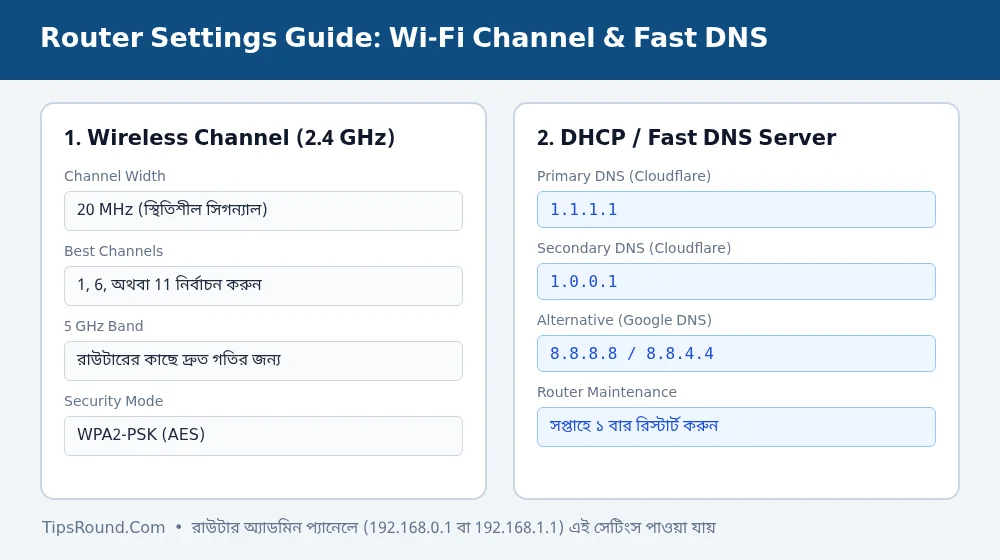 Router 2.4 GHz channels (1, 6, 11) and Cloudflare/Google DNS settings
Router Placement and Maintenance Rules
Alongside settings, following a few basic hardware usage rules is essential:
- Place in an Open, Elevated Spot: Keep the router in a central, elevated, open area of the room rather than inside a cabinet, on the floor, or in a corner behind thick walls.
- 2.4 GHz vs. 5 GHz Usage: If you have a dual-band router, use 5 GHz when in the same room; it avoids interference and delivers maximum speed.
- Check for Unknown Devices: If you see any unfamiliar phone or PC in the router's Connected Devices list, change your password and enable MAC filtering.
- Weekly Restart: Running continuously for weeks fills up the router's cache memory, so restart your router at least once a week.
Wired Speed Test (LAN Cable Test)
To verify whether you are actually getting the full speed of your package, connect an Ethernet cable directly from the router to your laptop and run a speed test. If you get full speed over the cable but lower speed on Wi-Fi, the issue lies in your router's placement or signal channel.
Router Security and Firmware Updates
Alongside maintaining speed, keeping your home Wi-Fi network secure is equally important:
- Change the Default Admin Password: Many users never change the default admin password printed on the back of the router; be sure to update the admin panel login password.
- Disable the WPS Feature: Turning off WPS (Wi-Fi Protected Setup) in router settings eliminates the risk of unknown apps guessing your password.
- Firmware Updates: Check your router manufacturer's official support page at least once a year for new security firmware updates.
Frequently Asked Questions (FAQ)
Does changing DNS increase internet download speed?
While it doesn't increase your maximum download bandwidth, website resolution (opening speed) becomes noticeably faster and browsing feels smoother.
2.4 GHz or 5 GHz—which is better?
2.4 GHz is better for passing through walls and reaching farther distances, while 5 GHz is best for maximum speed near the router.
Should I replace an old single-band router?
If your connection is 50 Mbps or higher, upgrading to a dual-band gigabit router is a smart choice.
Conclusion: Ensuring the right channel, fast DNS, and ideal router placement will significantly improve your Wi-Fi experience without any extra cost.
Discussion & Comments (0)
No comments on this post yet. Be the first to comment!