

For those who want to learn programming, web development, or Linux but do not always have a laptop or desktop handy, Termux is an extraordinary tool. Termux is a powerful terminal emulator for Android that creates a full Linux environment on your phone without requiring root access. Inside it, you can directly run professional development tools like Python, Node.js, Git, PHP, or a C compiler. This guide presents Termux setup and the most useful commands in a simple way for beginners.
Essential Basic Commands to Know at the Start
After installing and opening Termux for the first time, practice the following commands step by step:
- pkg update && pkg upgrade: Before installing any new tool, run this command to update all repositories and packages.
- termux-setup-storage: Run this command and grant storage permission to access your phone's Downloads or memory card folders.
- ls and pwd: Use pwd to see which directory you are currently in, and ls to list the files inside that folder.
- cd and mkdir: Type mkdir folder_name to create a new folder, and cd folder_name to enter that folder.
- pkg install python git: A simple command to install Python and Git together in the terminal.
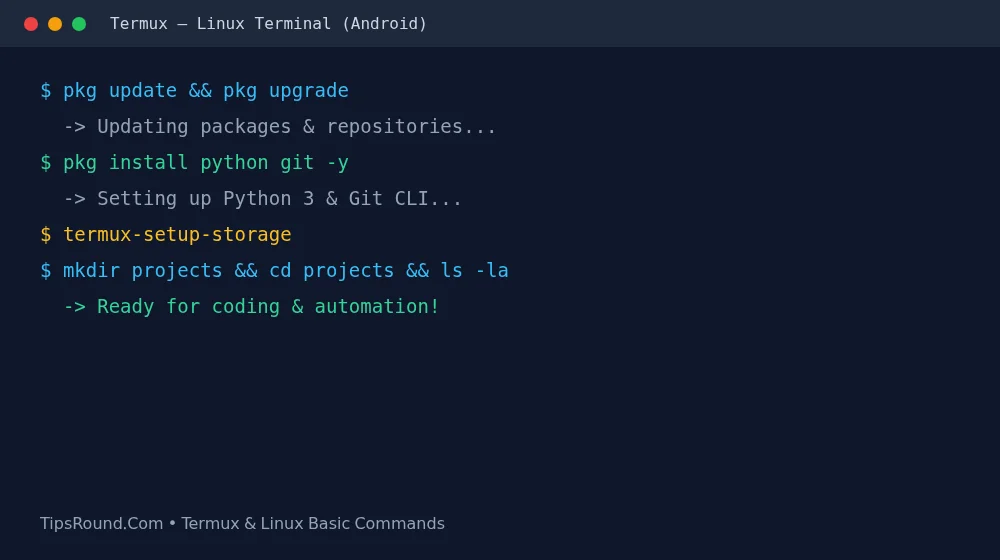 Sample commands in Termux for updating packages, installing Python, and creating folders
Where and How to Install Safely
Many people download an outdated version from the Play Store and run into package errors. The right method is:
- Use F-Droid or GitHub: Always download the official, regularly updated version of Termux from F-Droid or Termux's official GitHub Releases.
- Extra Keyboard Keys: Tab, Ctrl, and Arrow keys appear right below the terminal screen, making typing code and commands easy.
- Using a Text Editor: You can install the Nano editor with pkg install nano to edit small code files or notes right inside the terminal.
Practical Advice for Beginners
There is nothing to fear when looking at the terminal at first. If you practice creating files, copying (cp), removing (rm), and running small Python scripts for 10–15 minutes every day, the Linux command line will become easy within a month. Remember, deleting a file with the rm command does not send it to a recycle bin—it is erased permanently, so use it carefully.
Useful Packages and Shortcut Tips in Termux
To make daily work easier, it helps to know a few more handy Termux packages and keyboard tricks:
- Extra Keys Row: Using ESC, TAB, CTRL, ALT, and arrow keys at the bottom of the terminal lets you quickly auto-complete commands (by pressing Tab) just like on a PC.
- Background Sessions & Notifications: When running a large download or local server, enabling 'Acquire Wakelock' from the notification bar keeps the process running even when the screen is off.
- Essential Package Collection: Installing curl or wget for downloading files, and nano or vim for editing code, makes tasks much smoother.
Frequently Asked Questions (FAQ)
Do I need to root my phone to run Termux?
No, over 95% of development and programming tasks in Termux can be done without root.
Can I run a website or local server in Termux?
Yes, you can install Python, PHP, or Node.js to test web projects on localhost.
What should I do if a command gets stuck or I want to stop it?
Tap the CTRL button on the keyboard and press C (Ctrl+C) to immediately stop the running process.
Conclusion: There is no better alternative than Termux for turning the smartphone in your hand into a portable lab for learning Linux and practicing coding.
Discussion & Comments (0)
No comments on this post yet. Be the first to comment!