
Our email, social media, cloud storage, or website admin panel—everything relies on one or two passwords. Unfortunately, many people use their date of birth, mobile number, or the same password across every website just to remember it easily. Once a small website suffers a Data Breach, hackers try that same email and password to break into your Gmail or Facebook too. To eliminate this risk completely, there is no substitute for strong passwords and Two-Factor Authentication (2FA).
4 Steps to Set Up Strong Passwords and 2FA
Add the following security layers to your most important accounts today:
- A Unique Password for Every Site: Create a separate password of at least 12–16 characters combining uppercase letters, lowercase letters, numbers, and special symbols for each account.
- Authenticator App-Based 2FA: SMS OTPs can be vulnerable to SIM swapping or network issues; therefore, use Google Authenticator, Microsoft Authenticator, or Ente Auth.
- Use a Password Manager: You don't need to memorize dozens of complex passwords. Store all of them encrypted in a trusted password manager like Bitwarden.
- Save Backup Recovery Codes: Print out or store the 8–10 one-time backup codes provided when enabling 2FA in a secure offline file.
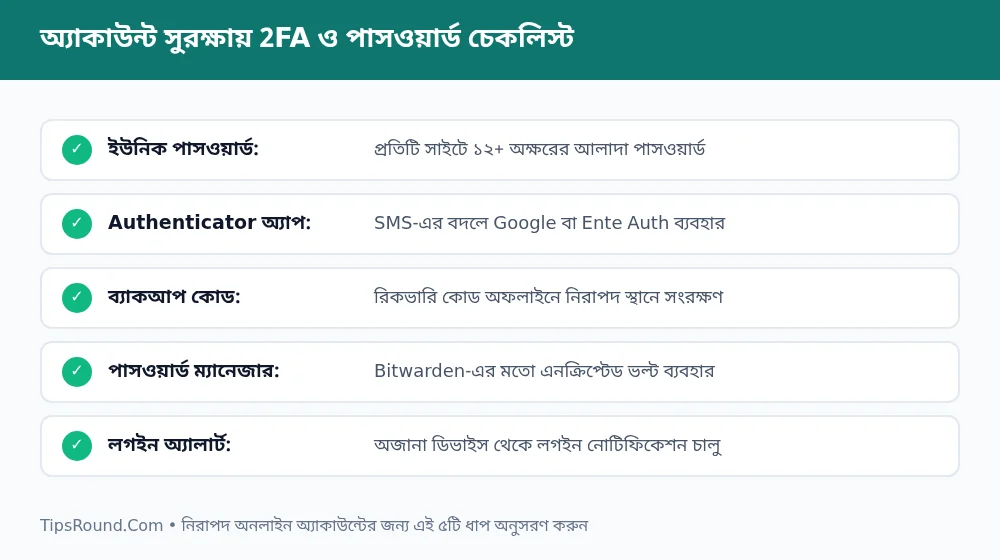 2FA and password manager checklist to keep online accounts secure
Login Alerts and Session Management
Alongside passwords and 2FA, regularly monitoring account activity is also important:
- Check Active Devices: Go to the Security section of your Google Account and Facebook once a month to see which devices are logged in; remove any unfamiliar device immediately.
- Keep Recovery Email and Phone Updated: Keep an active recovery email and your current phone number linked to your primary email.
- Caution on Public Computers: When logging in at a cyber café or on someone else's PC, always use Incognito mode and log out when finished.
Extra Advice for Website Admins and Developers
If you manage your own website, cPanel, or database, make sure to enable strong passwords and 2FA on the admin panel. Never save server passwords or API Keys in plain text files or unencrypted browser notes.
Long-Term Planning for Passwords and Account Recovery
Besides securing your accounts, prepare ahead so you don't accidentally lock yourself out in an emergency:
- Update Recovery Info: If you change your SIM number or alternate email, update it right away in Google, Facebook, and other essential accounts.
- Multiple Recovery Methods: Never use the same email as its own recovery address; use a trusted family member's email or a secure email from a different provider.
- Software Updates: Always keep your phone and computer browsers updated so the latest security patches remain active.
Frequently Asked Questions (FAQ)
How can I recover 2FA accounts if my phone is lost or broken?
You can regain access using the backup recovery codes received during account setup or through a cloud-synced encrypted authenticator like Ente Auth.
What should a master password look like?
Using a Passphrase made of 4–5 unrelated words that is easy to remember yet impossible to guess is the best approach.
Should SMS 2FA never be used at all?
SMS 2FA is better than having nothing, but wherever possible, using an Authenticator app or Passkey is far superior.
Conclusion: Spending just 10 to 15 minutes to set up these security measures will keep your digital accounts safe for the long term.
Discussion & Comments (0)
No comments on this post yet. Be the first to comment!