
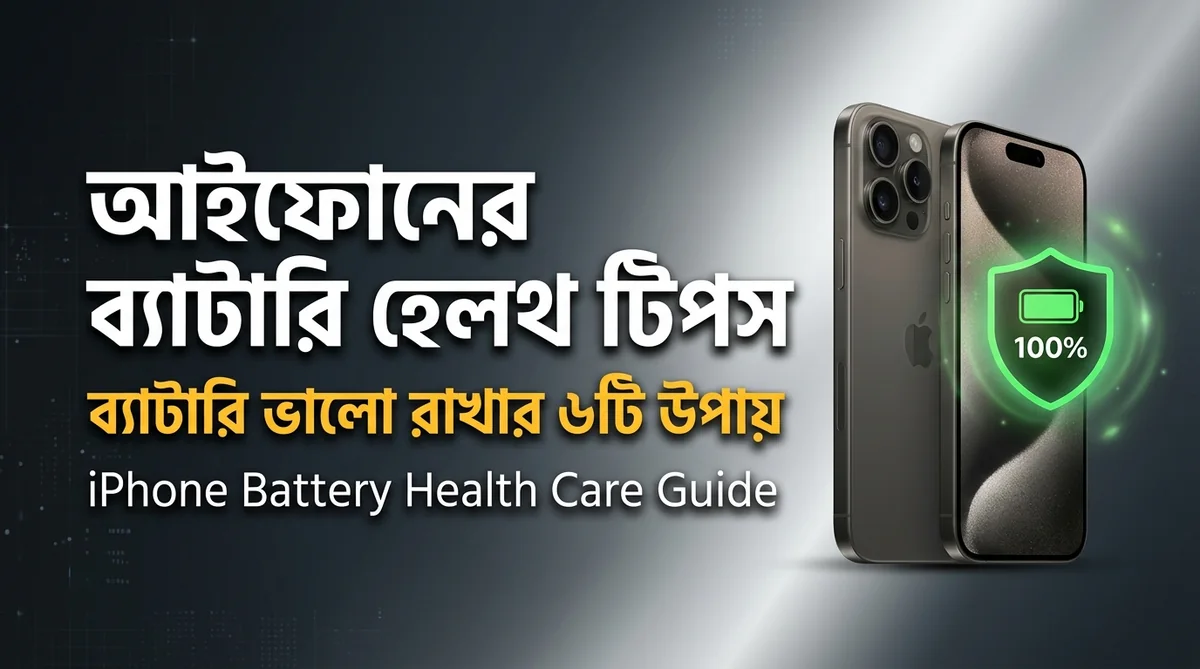
For iPhone users, maintaining high Battery Health is almost as important as overall performance. Every lithium-ion battery naturally ages over time as it completes charge cycles, gradually losing a small percentage of its maximum capacity. However, poor charging habits, excessive heat, and unoptimized background settings can cause battery health to drop far faster than normal. By following a few simple daily habits, you can keep your iPhone battery healthy well past the 90% mark for a long time.
6 Effective Ways to Protect Your iPhone Battery Health
1. Follow the 20–80% Charging Rule
Repeatedly draining your iPhone to 0% or keeping it plugged in at 100% puts unnecessary chemical stress on lithium-ion cells. Try to plug in around 20% and unplug between 80% and 90%. Newer iPhone models even allow you to set a hard 80% charge limit in settings.
2. Keep Optimized Battery Charging Enabled
iOS includes Optimized Battery Charging, which learns your daily charging routine. It pauses charging at 80% and finishes the remaining 20% right before you normally wake up or unplug. Verify this is turned on under Settings > Battery > Battery Health & Charging.
3. Control Heat Exposure
Heat is the single biggest enemy of battery longevity. Avoid playing demanding 3D games while fast-charging, leaving your phone on a car dashboard in direct sun, or charging inside a thick insulated case if the device feels warm.
4. Use Original or MFi-Certified Chargers
Cheap, uncertified cables and adapters deliver unstable voltage that damages both the battery and the internal charging IC. Always stick to official Apple accessories or reputable MFi (Made for iPhone) certified brands.
5. Limit Background App Refresh
Apps constantly refreshing data in the background drain power and increase total charge cycles. Go to Settings > General > Background App Refresh and disable it for apps you do not need live updates from.
6. Enable Auto-Brightness
Running your OLED display at maximum brightness unnecessarily drains the battery and generates heat. Turn on Auto-Brightness under Settings > Accessibility > Display & Text Size so your screen adapts naturally to ambient light.
Battery Care: Do's and Don'ts
| Healthy Habits (Do's) | Harmful Habits (Don'ts) |
|---|---|
| Charge between 20% and 80% | Drain to 0% every single day |
| Use Apple or MFi-certified cables | Use cheap unbranded adapters |
| Let the phone stay cool while charging | Play heavy games while plugged in |
| Keep Optimized Charging active | Charge under pillows or in direct sun |
Step-by-Step Optimization Setup
- Open Settings and tap Battery.
- Select Battery Health & Charging and enable Optimized Battery Charging.
- Navigate to Background App Refresh and turn it off for non-essential social or shopping apps.
- Enable Auto-Brightness and keep iOS updated for the latest power-management improvements.
Common Myths and Tips
- Force-Closing All Apps: Constantly swiping away apps from the app switcher actually forces iOS to reload them from scratch, using more battery.
- Power Bank Choice: When traveling, use a quality USB-PD power bank from a trusted brand.
- When to Replace: Apple recommends replacing the battery once maximum capacity drops below 80%.
Frequently Asked Questions (FAQ)
1. What is considered a good iPhone battery health percentage?
Anything between 85% and 100% is considered healthy. Once it falls below 80%, you may notice shorter screen-on time and occasional performance throttling.
2. Does wireless or MagSafe charging damage the battery?
Certified MagSafe chargers are safe, though wireless charging generates slightly more heat than wired charging—so using a cable occasionally helps keep temperatures lower.
3. Is overnight charging bad for my iPhone?
With Optimized Battery Charging enabled, modern iPhones prevent overcharging automatically, though unplugging at 80–90% during the day is still ideal.
Discussion & Comments (0)
No comments on this post yet. Be the first to comment!