
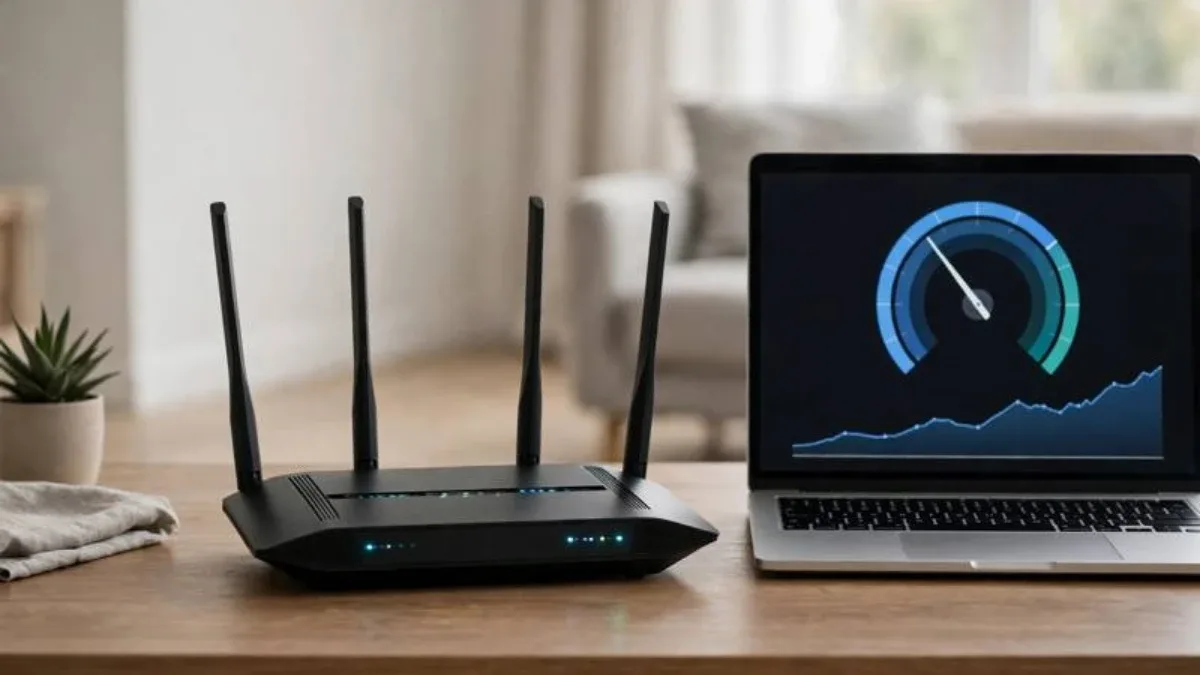
Imagine joining an online class from home when the video suddenly freezes, trying to send a work file that refuses to finish uploading, or settling in for a movie at night only to face endless buffering. Many households deal with this every day. Even if your internet connection itself is fast, your speed drops if the WiFi signal cannot reach your rooms properly. In this guide, you will find simple, step-by-step ways to boost your home WiFi speed.
Place Your Router in the Right Spot
Where you put your router is the single most important factor. Many people tuck their router into a corner, behind a cabinet, or down near the floor, where walls and furniture block the signal. It is much better to place your router in a central, elevated, open location—such as on a table or shelf—so the signal can spread evenly in all directions. Avoid placing large metal objects, mirrors, or water bottles right next to the router, as they can interfere with the signal. If your router has external antennas, adjust them properly; keeping one upright and another slightly angled often improves coverage across rooms. Also keep the router away from microwaves, cordless phones, and Bluetooth speakers, which can cause interference.
Restart and Update Your Router
When a router runs nonstop for weeks, temporary glitches can build up and slow down your connection. Once a week, unplug the router, wait 30 seconds, and plug it back in to clear minor issues—just avoid restarting it too frequently. It is also important to update your router's software, known as firmware, from time to time. Check the router's settings page for available updates, as installing them improves security and often boosts speed and stability. Make sure to run updates when you are unlikely to lose power so the process is not interrupted.
Choose the Right Band and Channel
Many modern routers offer two frequency bands: 2.4 GHz and 5 GHz. The 2.4 GHz band reaches farther through walls, though at a lower speed, while the 5 GHz band delivers faster speeds over shorter distances. If you are streaming video or downloading large files near the router, 5 GHz works best; if you are in a distant room, 2.4 GHz is often more stable. If your phone shows separate network names for each band, pick the one that suits your location. Additionally, when neighbors' routers use the same WiFi channel, congestion happens. Leaving your router's channel setting on Auto usually works well, but if you still see slowdowns, try switching manually to channel 1, 6, or 11—or use the 5 GHz band, which tends to have less crowding.
Manage Connected Devices and Usage
When too many devices connect to your WiFi at once, your available bandwidth gets divided among them. If phones, laptops, smart TVs, tablets, and other gadgets are all active simultaneously, every device slows down. Disconnect or turn off WiFi on devices you are not using, and pause automatic TV updates or cloud backups during important work or calls.
- Check your router's connected devices list occasionally for unfamiliar gadgets
- Use a strong password so neighbors cannot piggyback on your WiFi
- Set screen-time or internet schedules on kids' devices if needed
- Run large software updates overnight or during off-peak hours
Run a Speed Test to Diagnose Issues
Before trying fixes, measure your actual internet speed using a trusted speed test website on your phone or laptop. Run one test right next to the router and another from a faraway room. Comparing the two results tells you whether the problem is weak WiFi coverage or your internet line itself. Pause any active downloads during the test and run it a few times to get an average. If your speed is slow even right next to the router, contact your internet service provider. If it only drops in distant rooms, consider moving the router or adding a range extender or mesh WiFi system—just make sure to match the hardware to your home's size and layout.
Final Thoughts
Boosting your home WiFi speed does not always require upgrading your internet plan or buying expensive gear. Adjusting your router's placement, restarting it regularly, picking the right frequency band, and limiting idle devices can make a noticeable difference. Try one change at a time and note which one improves your speed so you can troubleshoot quickly if issues return.
Frequently Asked Questions
Should I restart my router every day?
No, restarting it every day is unnecessary. Once a week is enough to clear temporary glitches, whereas turning it off and on too often can put extra wear on the hardware.
Is 5 GHz always better than 2.4 GHz?
Not always. The 5 GHz band gives faster speeds when you are close to the router, while 2.4 GHz stays more stable across walls and longer distances. Choose based on how far you are from the router.
Can leaving my WiFi without a password slow it down?
Yes, it can. Without a password, people nearby can connect to your network and share your bandwidth, so using a strong password is essential.

Discussion & Comments (0)
No comments on this post yet. Be the first to comment!