
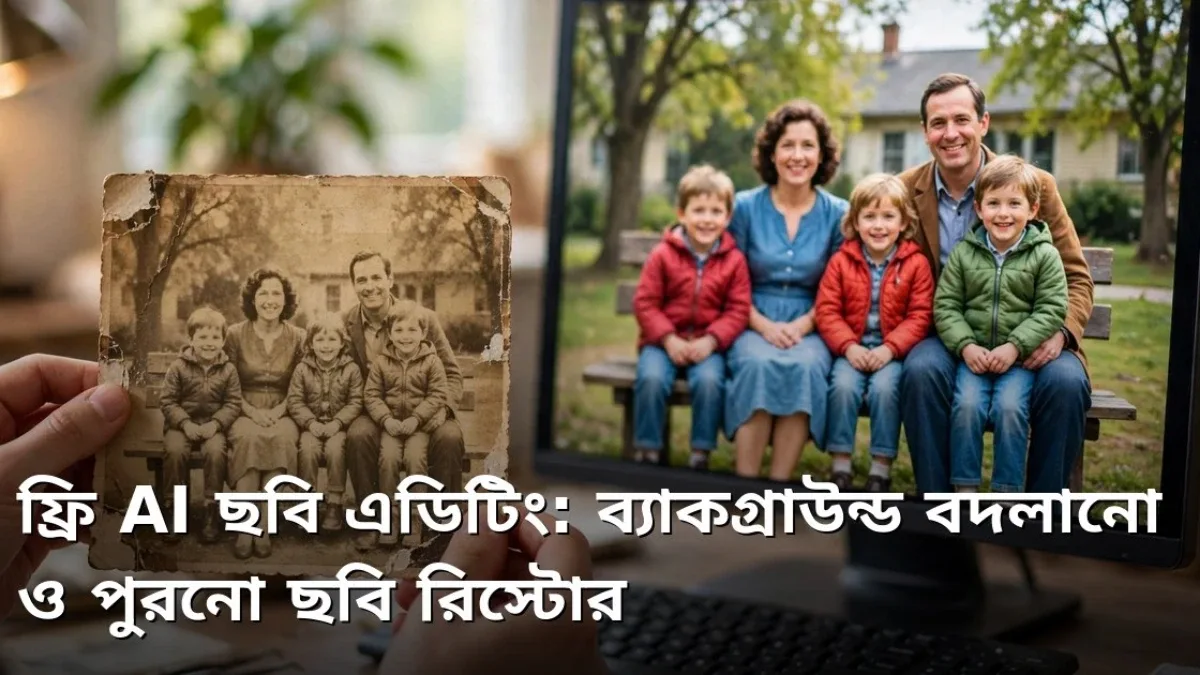
Many people have photos on their phones or in old albums that hold priceless memories, yet cluttered backgrounds, strangers photobombing the frame, or colors faded over time can ruin the feel. Fixing these issues used to require skilled editors and expensive software, but today free AI photo editing tools let you handle much of this right from your phone. Changing backgrounds, erasing unwanted objects, sharpening blurry shots, and restoring old photos can all be done in just a few steps. Here is a simple, step-by-step guide to doing it yourself.
Changing Backgrounds: One Photo, Endless Looks
AI background replacement works by separating the main subject of a photo—such as a person or a product—from what's behind it. When you upload a photo to a free AI editing app or website, the tool automatically removes the backdrop, letting you keep a transparent background, insert a solid color, or drop in a brand-new scene like a beach, garden, or office. For product photography, a clean solid-color background immediately makes the image look far more professional.
For the best results, the clearer and better-lit the original photo is, the sharper the cutout edges will be. Delicate areas like hair strands or fingers can sometimes have minor glitches, which you can zoom in and touch up with a small brush tool. When placing a new background, pay attention to matching the lighting and color tone so the photo doesn't look artificial. Using this on photos you took yourself for personal use is the safest and most hassle-free approach.
- Clear, well-lit photos produce the cleanest cutouts
- Solid-color backgrounds make product photos look professional
- Zoom in and fix edge flaws with a brush tool
- Match lighting and colors when adding a new background
Removing Unwanted Objects and Cleaning Up Photos
Strangers in the background of a travel shot, stray wires on a wall, or litter on the ground can distract from a great photo. With an AI object-removal tool, simply highlighting that area lets the AI analyze surrounding colors and textures and fill in the space naturally. This works best on small objects against simple backgrounds; larger or more complex areas may take a few tries and won't always turn out spotless.
For blurry or low-light photos, AI enhancement options can boost sharpness, reduce noise, and adjust colors to make the image much more presentable. Keep in mind, though, that AI cannot recover lost original detail—it fills in gaps by guessing, so keep expectations realistic and inspect the result yourself. Always keep a separate copy of the original photo so you still have it if the edited version doesn't look right.
- Small unwanted objects are the easiest to remove cleanly
- AI can improve the sharpness and color of blurry photos
- Always save a separate copy of your original photo
- AI fills in details by estimating, so review the final result
⚠ Never alter someone else's photo with AI to mislead people or harm their reputation, and avoid uploading sensitive personal photos to unfamiliar websites.
Restoring Old Photos: Bringing Faded Memories Back to Life
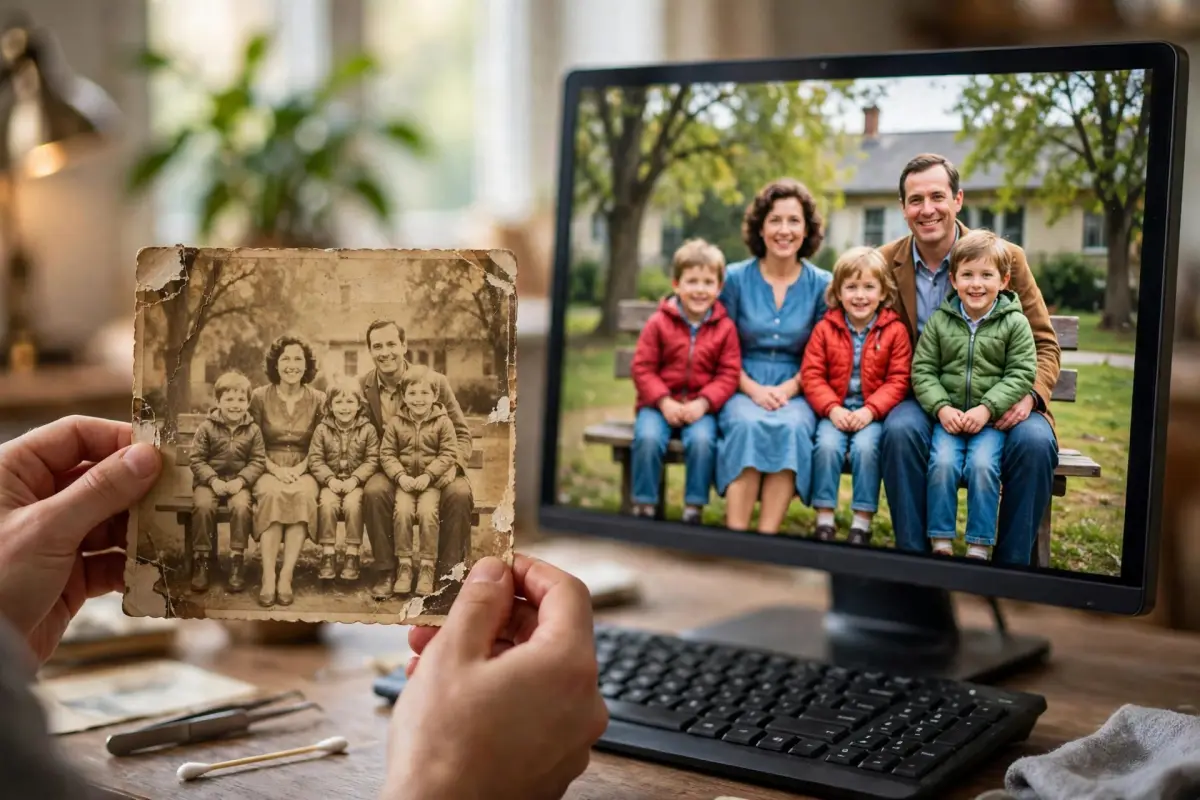
Old family photos naturally fade over time—spots appear, edges tear, or colors peel away. The first step is to scan or photograph the print straight-on in good lighting so there are no shadows or glare. Once you upload it to a free AI restoration tool, it can reduce blemishes, bring back faded tones, sharpen facial features, and even add estimated color to black-and-white prints. For grandparents' portraits or vintage family snapshots, this process can be deeply emotional.
Because AI adds estimated colors and details during restoration, clothing shades or background elements may not match the exact original scene. It's best to view the result as a lovely tribute to a memory rather than a strict historical record. After restoring a photo, share it with family members and back it up to cloud storage so it won't be lost again. If you have several old photos, take them one by one with patience, as each print's condition is different and will yield different results.
- Scan or photograph prints straight-on in good lighting
- AI can reduce blemishes and restore faded colors
- Added colors are estimates and may not be exact
- Back up restored photos and share them with family
Free Usage Limits and Privacy Precautions
Most free AI editing tools come with daily usage limits, and downloading high-resolution files or removing watermarks may require a paid plan. Check the free limits before you start so you can prioritize your most important photos first. Be cautious about uploading personal photos to unfamiliar or sketchy websites—once an image reaches someone else's server, you no longer have full control over how it is used.
Always get permission before editing or publishing someone else's photo, and never create misleading altered images of anyone. Overall, free AI editing gives us an accessible, powerful way to polish everyday shots and breathe new life into old memories. Used thoughtfully and respectfully, this technology brings both joy and practical value to family life and work alike.
- Check free limits and prioritize your most important photos
- Avoid uploading personal photos to suspicious websites
- Ask permission before editing or sharing others' photos
- Never create misleading or deceptive edited images
📱 Join my Telegram channel for more daily tips like this: https://t.me/earnhelosp


Discussion & Comments (0)
No comments on this post yet. Be the first to comment!