
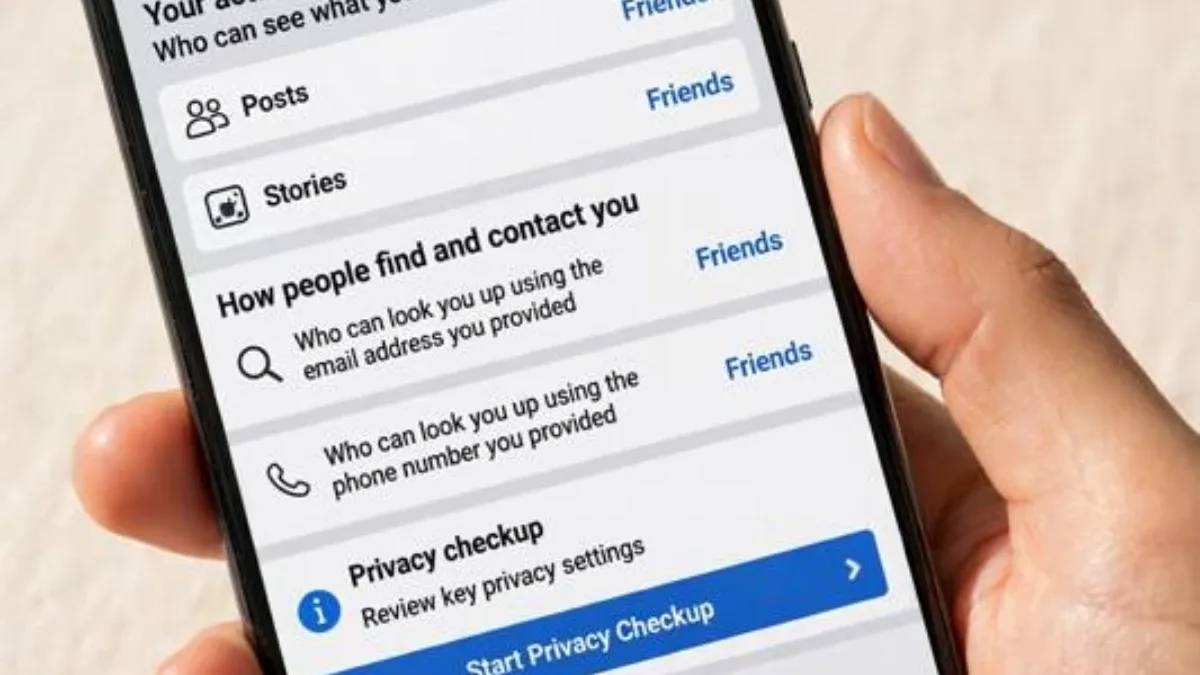
Every day, we share photos, thoughts, and videos on Facebook—but many people rarely check who can actually see them. Profile details, friend lists, and older posts can easily end up visible to complete strangers, increasing the risk of identity theft, unwanted messages, or scams. Taking a few minutes to adjust your Facebook privacy settings puts you back in control of your personal data. Here is a step-by-step guide to the most important Facebook privacy settings to check in 2026.
Start with a Privacy Checkup
Open the Facebook app, head to Settings, and look for the Privacy Checkup tool. It brings together key controls in one place, showing who can see your posts, who can find your profile, and who can view your personal details. Start here and review each option carefully without rushing through settings you aren't sure about.
In most cases, it's best to set your default post audience to Friends rather than Public, so strangers can't browse your updates. You can also limit the audience of your past posts. Never leave your phone number, email address, or date of birth set to Public—keep those visible only to yourself or trusted friends.
Secure Your Profile and Friend List
Anyone on Facebook can view your profile picture and cover photo, so avoid using images that reveal sensitive personal details. Leave your home address, detailed workplace info, and phone number out of your public bio. Check who can see your friend list as well—setting it to Friends or Only Me is a smart safeguard. If you list your school, college, or workplace in your About section, decide who should see it and restrict it to friends if needed.
Always inspect a profile before accepting friend requests from people you don't recognize. Watch out for red flags like duplicate photos, very few friends, or brand-new accounts. Review your followers list too, and block unfamiliar accounts if necessary. Also enable tag review in your settings so that whenever someone tags you in a post, it requires your approval before appearing on your profile.
Control Who Sees Your Posts
Each time you publish a post, you can choose exactly who sees it. Keep personal photos and family moments restricted to Friends. Think twice before making a post Public, because once it's public, anyone can share and spread it further.
- Keep personal and family posts set to Friends only.
- Avoid adding location tags to every single post.
- Never share photos of children publicly.
- Wait until you return home before posting travel photos.
Avoid posting updates that reveal your house is empty while you're away, as that creates unnecessary security risks. Apply these same habits to your Facebook Stories, and check your Story privacy settings to control who can view them.
Strengthen Your Login Security
Privacy settings work best when paired with strong account security. Use a strong, unique password for Facebook that you don't reuse on any other website. Combine uppercase and lowercase letters, numbers, and symbols, and avoid easy-to-guess words or your birth date.
Turn on two-factor authentication (2FA) so that even if someone gets your password, they can't log in without a verification code sent to your phone—and never share that code with anyone. In your security settings, check the list of active logins and log out of any unfamiliar devices. If you ever use Facebook on someone else's phone or a public computer, remember to log out when you're done and never save your password. Turning on login alerts will also notify you immediately if someone signs in from an unrecognized device.
Review App and Ad Permissions
Many third-party apps and games let you sign in with Facebook, which grants them access to parts of your profile data. Go into your settings to see which apps are connected and revoke access for any you no longer use. Avoid logging into unfamiliar quiz apps or random games with your Facebook account.
You also have control over your ad preferences. Facebook shows ads based on your interests and activity, so visit your Ad Preferences settings to limit unnecessary data sharing. If Location History is enabled, consider turning it off to reduce how much movement data is stored.
Final Thoughts
Setting up your Facebook privacy isn't a one-time task. Check your settings every few months, as new features and updates can change how options work. Regularly reviewing your posts, profile details, and login security is the best way to keep your account safe. Teach your family members these same settings so they can stay protected on Facebook too.
FAQ
How often should I check my Facebook privacy settings?
It's a good idea to review them every two to three months. Platform updates can introduce new options or shift defaults, so regular checkups help keep everything locked down.
Does everyone need two-factor authentication?
Yes, everyone should enable it. It dramatically lowers the risk of your account being hacked, since a password alone won't be enough to sign in.
What should I do if I get a friend request from a stranger?
Don't accept requests from people you don't know. Check the profile, delete the request if it looks suspicious, and block the account if they keep bothering you.



Discussion & Comments (0)
No comments on this post yet. Be the first to comment!