
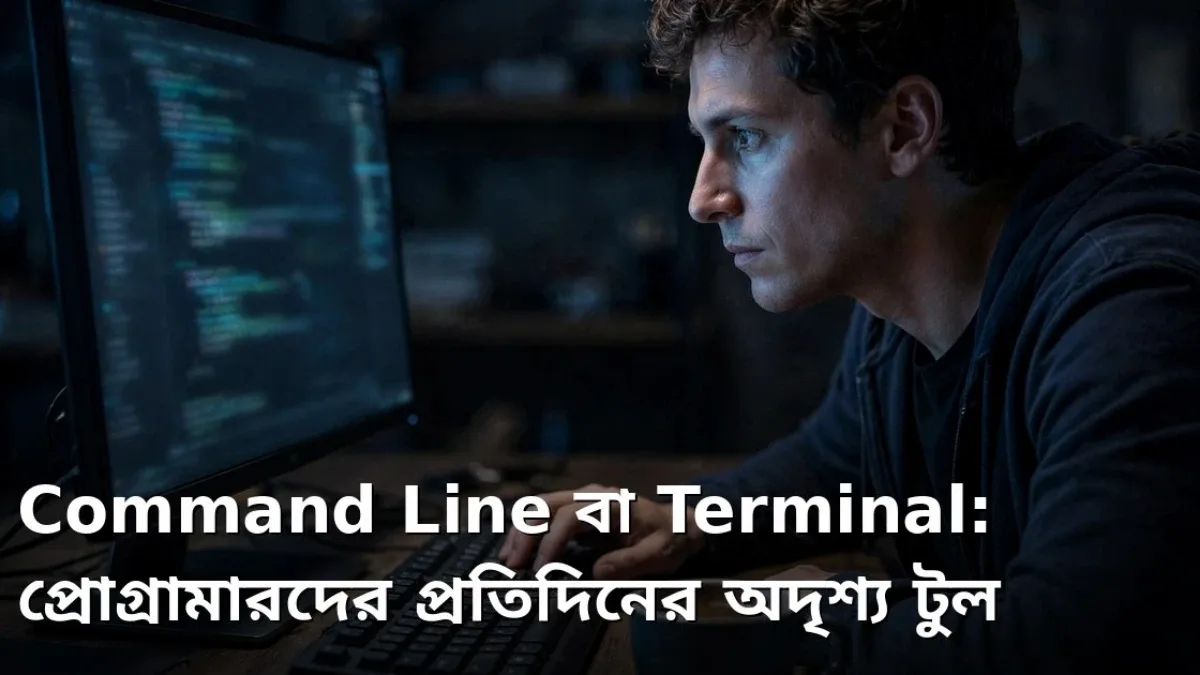
Many beginners assume that programming is all about clicking colorful buttons on a screen. In reality, a large portion of experienced programmers spend their day typing into a plain black or white window. That window is called the Command Line or Terminal. Instead of using a mouse, you type text commands on a keyboard to tell the computer what to do. At first glance it might look old-fashioned, but once you see its speed and power, you will be amazed. Creating files, switching folders, running programs, and communicating with servers can all be done from here in seconds.

Why the Terminal Is So Popular Among Programmers
Doing a task with a mouse often requires clicking through multiple menus, opening windows, and waiting. In the Terminal, a single line of text gets the job done. Renaming hundreds of files at once, searching for specific text across a huge project, or logging into a remote server to manage it—nothing beats the Terminal for these tasks. Another big advantage is repeatability. Once you learn a command, you can save it and automate repetitive daily chores. In the world of servers, there is usually no graphical interface at all, making the Terminal your only option. So whether you aim for a full-time job or freelancing, this skill will set you apart.
- Create, delete, and move files and folders rapidly.
- Run programs and see their output immediately.
- Download and install essential tools from the internet.
- Connect securely to remote servers and work directly on them.
Commands Beginners Should Learn First
Beginners do not need to memorize every command all at once. Start by learning how to check which folder you are currently in, list the contents inside a folder, move to another folder, and create new folders and files. Next, learn how to copy files, rename them, and delete them carefully. Pressing Enter after typing a command executes it, and if something goes wrong, the Terminal usually prints a message explaining the issue. Make a habit of reading those error messages, because understanding the problem is the first step to fixing it. Practice in a separate test folder rather than on your real files every day. Within a few days, you will find yourself doing plenty of tasks without touching the mouse, and your confidence will grow.
How to Overcome Fear and Build Confidence
The biggest reason people fear the Terminal is that there is practically no Undo button. With the right habits, however, there is nothing to worry about. Read every command carefully before running it, especially delete commands—always verify which folder you are in first. Keep a copy of important files before experimenting. Never run long commands copied from unfamiliar websites without understanding what they do. Instead, look up what each part means before using it. Keep a small notebook or digital note of the commands you learn along with examples. Practicing with friends can also speed up your learning. Remember that today's experienced programmers once hesitated before typing their very first command, just like you.
⚠ Caution: Running delete or modify commands in the wrong folder can wipe out important files. Be especially careful with commands run as an administrator and with unfamiliar scripts, and always keep regular backups of your working files.
How the Terminal Saves Time on Real Projects
A real-world example makes this crystal clear. Suppose a website project has hundreds of files, and you suddenly need to replace an old name with a new one everywhere. Opening every file with a mouse and searching manually could take all day. In the Terminal, a single search command tells you within seconds which files contain that name. Launching the project, running tests, and building new releases can also be chained together using commands. Many programmers save their routine workflows in small scripts so that one command runs an entire sequence of steps. This not only saves time, it also reduces human error because the exact same steps run the exact same way every time. When something goes wrong on a server, checking logs, restarting services, and seeing how much disk space is left are nearly impossible without the Terminal. Job interviews frequently test this skill too. So if you build the habit of using the Terminal a little bit every day while you are still a student, handling large projects later will feel much easier. It may feel slow at first, but after a month of practice your fingers will move faster and the commands will stick naturally.
Before wrapping up, here is one more tip: make use of the Terminal's command history feature. Pressing the up arrow key brings back commands you typed earlier, saving you from retyping long lines. Keep a short cheat sheet of the commands you use most often. This keeps your workflow smooth, cuts down on mistakes, and fuels your curiosity to learn new commands every day. Bit by bit, these small habits grow into major skills.
With a little daily practice, patience, and a willingness to learn from your mistakes, the Terminal will gradually become easy and enjoyable—and it will surely build a strong foundation for bigger projects ahead.
Final Thoughts
The Command Line or Terminal is nothing to fear; it is an invisible yet extraordinarily effective tool in a programmer's hands. The more you use it, the better you understand how computers actually work under the hood. Open the terminal on your computer or phone today and start practicing a few simple commands. Over time, this habit will boost your speed, efficiency, and confidence, carrying you far on your path toward bigger projects.
📱 Join my Telegram channel for more daily tips like this: https://t.me/earnhelosp




Discussion & Comments (0)
No comments on this post yet. Be the first to comment!