
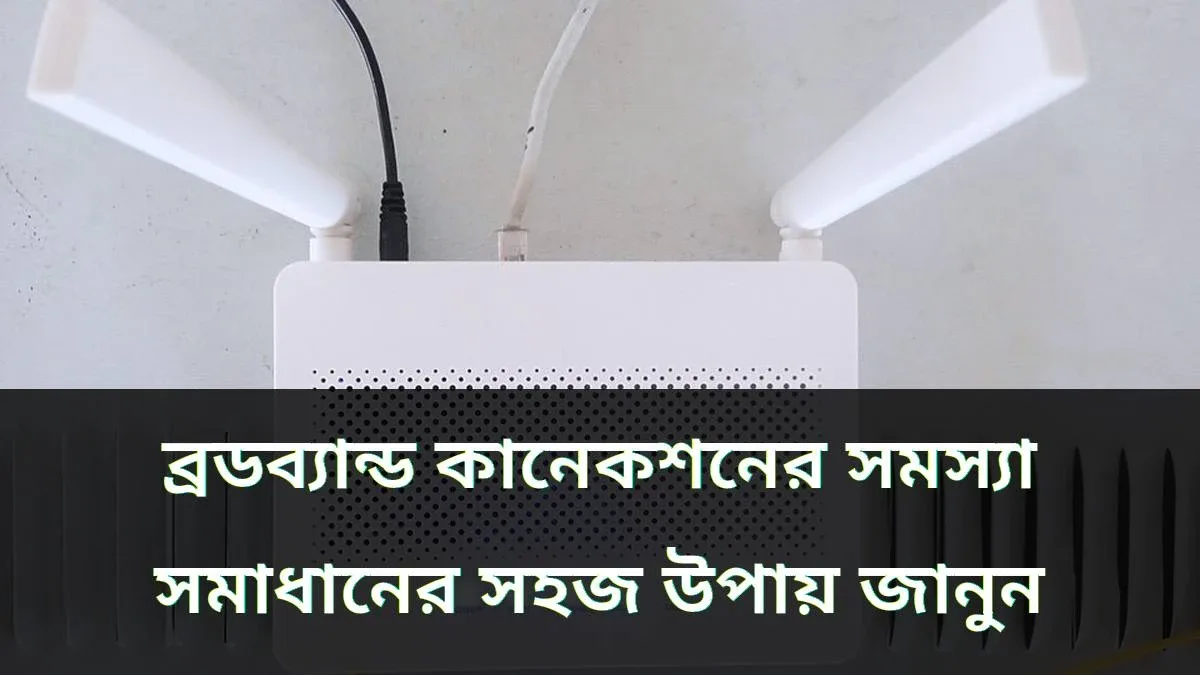
Last week at 11 PM, I had an urgent file to submit. I opened my laptop, and suddenly the internet went down. The router light turned red. I was at a loss. Everyone who uses broadband has experienced this. Videos buffering during a favorite drama, or getting disconnected in the middle of an online class — these have become everyday issues. The good news is that most of these problems can be fixed at home by yourself. Before calling a technician, try the following steps.
First, Identify Where the Problem Is
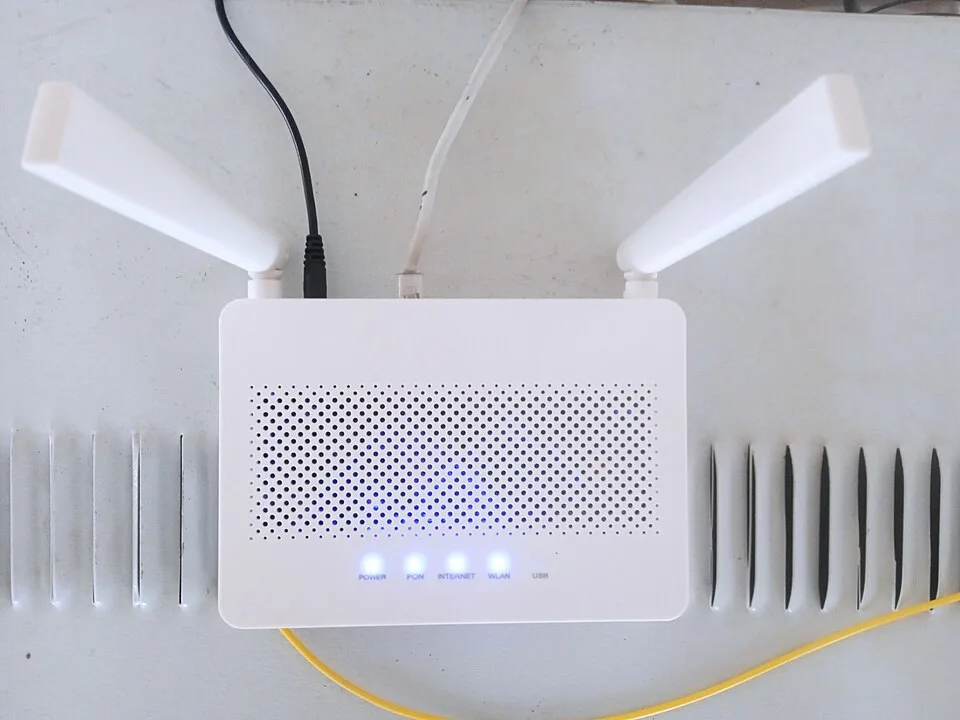
When the internet stops working, first figure out where the issue lies. Is it not working on your mobile, but working fine on your laptop? Then the problem is in your mobile settings. If it is not working on any device, the issue is with your router or the connection line. Look at your router and check if the internet light is on. If the light is red or turned off, there is an issue with the line.
Another common issue is when Wi-Fi shows as connected, but there is no internet access. This is known as the "No Internet" problem. Sometimes, the speed drops so low that no webpage loads at all. Identifying the problem solves half the issue. So instead of rushing to call a technician, inspect it yourself first.
Restart Your Router
This is the easiest and most effective solution. Turn off the router's power button and wait for 30 seconds. Then turn it back on. It may take 2 to 3 minutes for all the lights to stabilize. After that, try using the internet again. Believe it or not, this single step fixes the problem in most cases.
If you have a separate ONU or modem connected to your router, restart that in the same way. Turn on the ONU first, wait for it to boot up, and then turn on the router. Routers heat up if they run continuously for days, so turning them off occasionally is good practice. Also, keep your router in an open space—avoid placing it inside a cabinet or near metal objects.
Check Cables and Connections
If restarting does not work, inspect the cables. Check if all the cables at the back of the router are plugged in properly. Thin fiber optic cables are very delicate; even a slight bend can cut off the connection. Look for any cuts or heavy pressure on the cable. If you have a cat at home, it might chew and damage the wire, so keep the cables routed high up.
Try connecting a LAN cable directly to your laptop. If the internet works via LAN, the issue is with your Wi-Fi. If it does not work on LAN either, the problem is with the main line. Check if the power adapter is working properly, as a faulty adapter often prevents the router from functioning correctly. Do not pull forcefully when unplugging and replugging cables.
What to Do If Internet Speed Drops
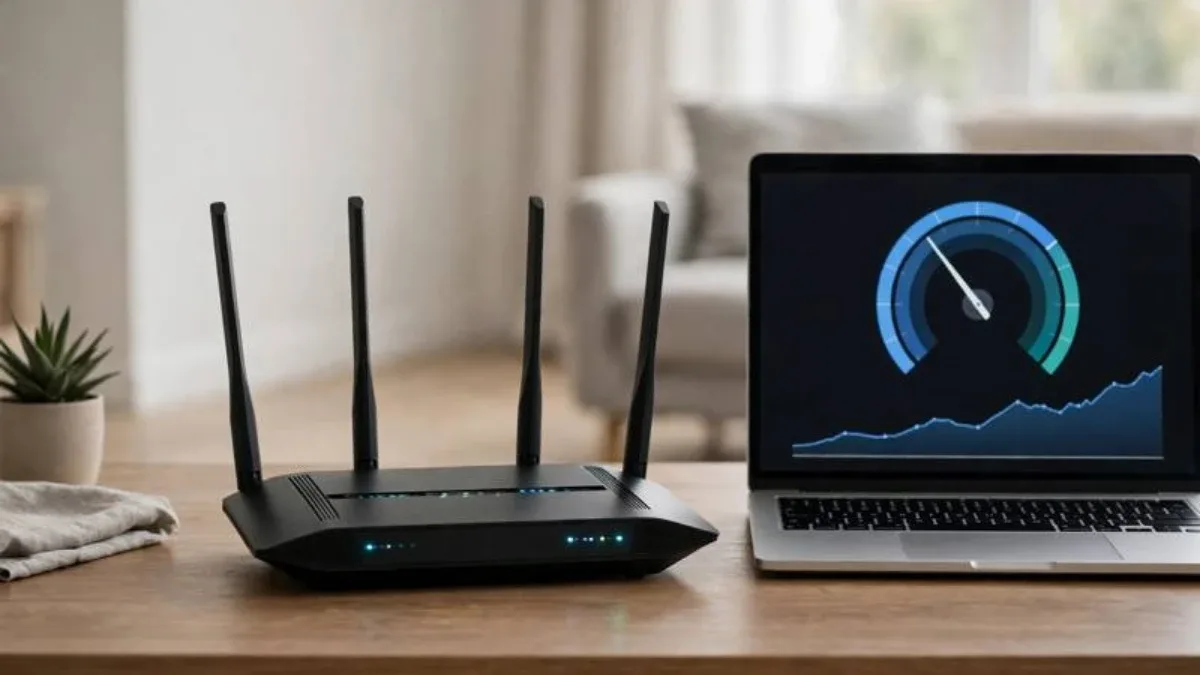
There can be many reasons behind slow internet speed. First, run a speed test. Open fast.com or speedtest.net to see how much speed you are getting. If your package is 10 Mbps and you are only getting 2 Mbps, there is definitely an issue. However, keep in mind that you never get the full speed over Wi-Fi; LAN connections always provide higher speeds.
Speed drops if you are far away from the router. Place the router in the center of your home rather than behind thick walls. Using multiple devices simultaneously divides the bandwidth, so disconnect Wi-Fi on unnecessary devices. Changing the router's Wi-Fi channel can also boost speed if there is signal interference from neighboring routers.

Check Router Settings
Sometimes, altered router settings can stop the internet from working. Type 192.168.0.1 or 192.168.1.1 in your browser to access the router's admin page. The username and password are usually printed on the back of the router. Check the internet status there. If you forget the password, press the router's reset button, though keep in mind this will erase all custom settings.
Never share your Wi-Fi name and password with strangers. If unauthorized people use your network, your speed will drop. If a neighbor knows your password and streams videos all day, you will not even realize why your internet is slow.
When to Contact Your ISP
If you have tried everything and the issue persists, contact your Internet Service Provider (ISP). Keep your customer ID handy before calling. Explain the problem clearly—mention when the internet went down and what troubleshooting steps you have already tried. Many ISPs allow you to report issues via WhatsApp or their Facebook page. Note down your complaint ticket number for future follow-ups.
The internet may also go down due to area-wide fiber cuts or power outages, in which case you need to be patient. If you face the same issue every month, consider switching ISPs. Before moving to a new house, ask neighbors which ISP offers the best service in that area.
FAQ
What should I do first when broadband internet stops working?
First, restart your router and ONU. Turn off the power, wait for 30 seconds, and turn it back on. In most cases, this single step resolves the issue.
Why does Wi-Fi show connected but have no internet access?
This is a "No Internet" issue caused by line faults, ISP server downtime, or incorrect router settings. If restarting the router does not help, contact your ISP.
How can I check my broadband internet speed?
Visit fast.com or speedtest.net to run a speed test. Testing via a LAN cable gives the most accurate result. If the speed is much lower than your subscribed package, report it to your ISP.

Discussion & Comments (0)
No comments on this post yet. Be the first to comment!