

Pop-up ads inside browsers and free Android apps can be frustrating. Without installing any third-party app, you can block most intrusive ads and trackers using Android's built-in Private DNS with dns.adguard-dns.com.
How to Enable AdGuard Private DNS on Android
- Open your phone's Settings app.
- Go to Network & internet or Connection & sharing (on Samsung: Connections → More connection settings).
- Tap Private DNS.
- Select Private DNS provider hostname.
- Enter exactly:
dns.adguard-dns.com(without spaces orhttps://). - Tap Save to activate system-wide DNS ad blocking immediately.
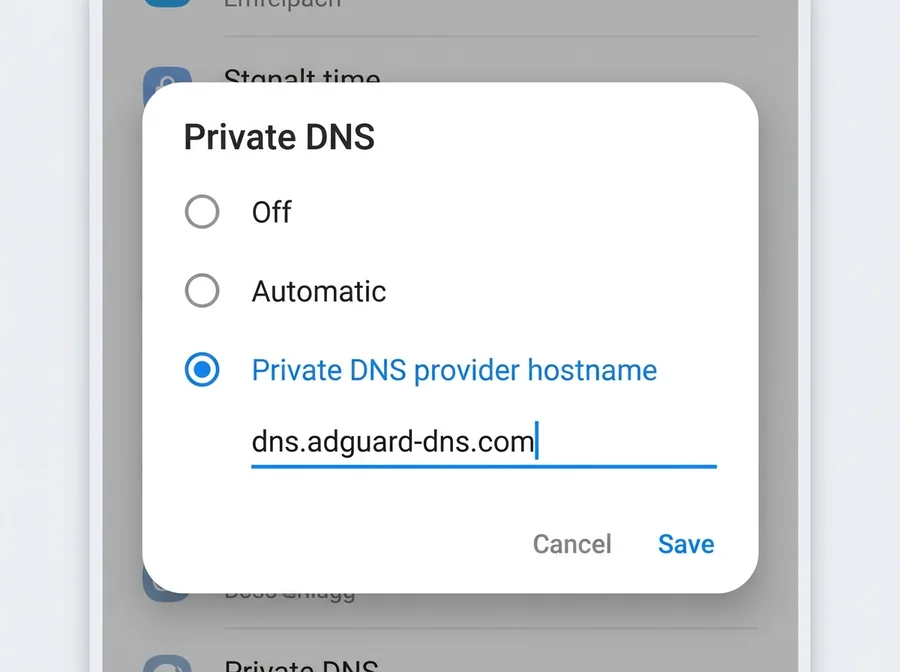 Image: Setting dns.adguard-dns.com inside Android Private DNS Settings
How to Turn Off Private DNS When Needed
- Go back to Settings → Private DNS.
- Select Off or Automatic instead of Private DNS provider hostname.
- Tap Save to restore normal DNS resolution.

Discussion & Comments (0)
No comments on this post yet. Be the first to comment!